How to Check Email Headers for Phishing: SPF, DKIM and DMARC Explained
An email lands in your inbox claiming to be from your bank. The logo looks right and the sender name looks right, but something feels off. The body of an email can say anything. The headers are harder to fake. Every mail server that handles a message adds a line to them, and the receiving server records whether the sender passed its checks. This guide shows you how to open the full headers and read the route a message took. It then explains what the SPF, DKIM and DMARC results tell you.
How to view the full email headers
Your mail client hides the headers by default. You can open them in each of the common clients like this:
- Outlook (classic desktop). Open the message, then select File → Properties and read the Internet headers box.
- Outlook on the web and new Outlook. Open the message, select the More actions menu (...), then View → View message source.
- Gmail. Open the message, select More (the three dots beside Reply), then Show original. Google explains this step in Trace an email with its full headers.
- Apple Mail. Select the message, then View → Message → All Headers.
Gmail's Show original view is a good place to start, because it puts the SPF, DKIM and DMARC results in a summary at the top.
Read the Received chain from the bottom up
Each server that passes a message on adds a Received: line to the top of the headers. That means the oldest line, the one nearest the real sender, is at the bottom. Read the chain from the bottom up and you follow the message from where it started to your inbox.
Look at the lowest Received: line that your own organisation did not add. It names the server that handed the message to your provider, along with its IP address. If an email claims to come from a large bank but was first handed over by an unknown host at 203.0.113.45, you have a reason to look further.
Keep in mind that a threat actor can forge Received: lines added before the message reached a server you trust. Only the lines your own provider added are reliable, so work from the top down until you reach the first line added outside your provider.
SPF, DKIM and DMARC in plain English
Three standards let a receiving server check whether a message really comes from the domain it claims. The receiving server writes its findings into an Authentication-Results: header, defined in RFC 8601. The diagram below shows the three checks and what the DMARC policy does when a message fails.
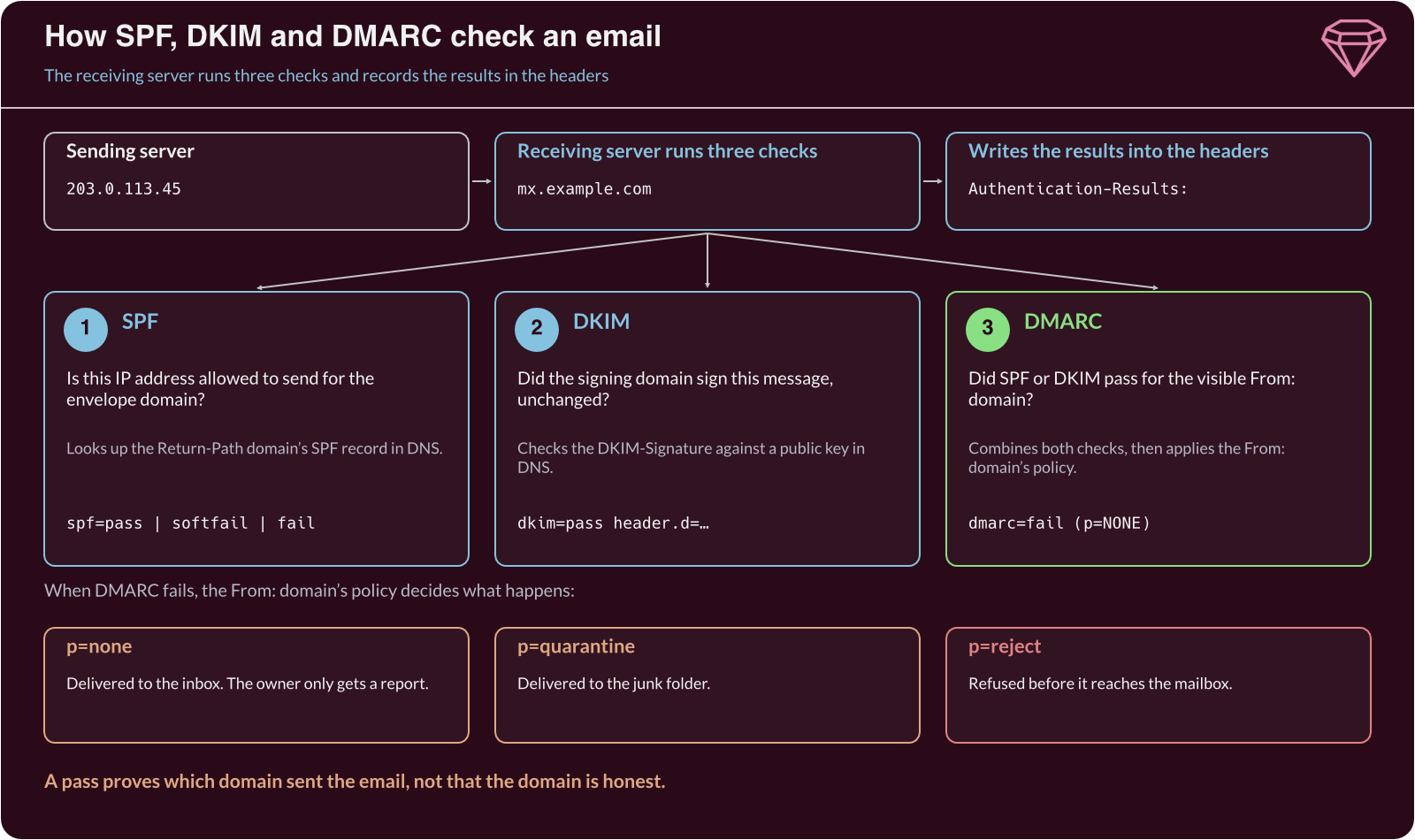
Sender Policy Framework (SPF) checks whether a domain allows the sending server's IP address to send its mail (RFC 7208). It checks the envelope sender, shown as Return-Path:, not the From: address you see.
DomainKeys Identified Mail (DKIM) adds a cryptographic signature to the message (RFC 6376). A pass proves that the domain in header.d= signed the message and that the signed parts were not changed in transit.
Domain-based Message Authentication, Reporting and Conformance (DMARC) ties the two together (RFC 9989). It passes only when SPF or DKIM passes and the passing domain matches the domain in the visible From: address. This match is called alignment. DMARC also publishes the domain owner's policy: none (only report), quarantine (send to junk) or reject.
You will see these results most often:
| Result | What it means |
|---|---|
spf=pass |
The sending IP address is allowed by the envelope domain. |
spf=softfail |
The domain says this IP address is probably not allowed (~all). |
spf=fail |
The domain says this IP address is not allowed (-all). |
dkim=pass |
The signature is valid for the header.d= domain. |
dkim=none |
The message was not signed. |
dmarc=pass |
SPF or DKIM passed for the domain in From:. |
dmarc=fail |
Neither check passed for the domain in From:. |
A none, temperror or permerror result means the check could not give an answer. The domain may publish no record, a DNS lookup may have failed, or the record may be broken.
Red flags to look for
Authentication results are only part of the picture. Check the headers for these signs too:
- A Reply-To that differs from From. Your reply goes to the threat actor, not the brand the email claims to be.
- A Return-Path on an unrelated domain. The bounce address shows who really sent the message.
- A DMARC fail on a well-known brand. Large organisations sign their mail, so a failure deserves a closer look.
- A lookalike or long deceptive domain. Names such as
example.com.account-verify.exampleput a trusted name at the start of a domain someone else owns. - A pass that proves nothing. SPF, DKIM and DMARC prove which domain sent a message, not that the domain is honest. A threat actor who registers a new domain can pass all three.
Worked example
This header comes from an email that claims to be a security alert from Example Bank, whose real domain is example.net:
Return-Path: <[email protected]>
Received: from mailer.account-verify.example (mailer.account-verify.example [203.0.113.45])
        by mx.example.com with ESMTPS id 4f2a9c1b
        for <[email protected]>; Mon, 26 Oct 2026 09:14:22 +0000
Authentication-Results: mx.example.com;
        spf=pass smtp.mailfrom=mailer.account-verify.example;
        dkim=pass header.d=account-verify.example;
        dmarc=fail (p=NONE) header.from=example.net
From: "Example Bank Security" <[email protected]>
Reply-To: <[email protected]>
Subject: Unusual sign-in detected on your account
Read it line by line. SPF and DKIM both pass, which looks reassuring until you see which domain passed: account-verify.example, not the bank. DMARC fails because neither passing domain matches example.net in the From: line. The Reply-To: sends any answer to the same unrelated domain, and the first outside server sits at 203.0.113.45. The policy is p=NONE, so the receiving server delivered the message instead of rejecting it. A strict DMARC policy would have stopped this email before it reached the inbox.
What to do with a phishing email
Once the headers confirm your suspicion, act on it:
- Do not click links or open attachments. Do not reply, even to unsubscribe.
- Report it. Use your organisation's report button, or forward it to your security team with the full headers attached. In the UK, you can forward suspicious emails to the National Cyber Security Centre (NCSC) at
[email protected]. - Block the sender. Add the sending domain and IP address to your mail filter's denylist.
- Look for other recipients. Search your mail logs for the same
Return-Path, sending IP address or subject line, since phishing campaigns rarely target one person.
Phishing is still one of the most common ways threat actors get in. MITRE ATT&CK tracks it as Phishing (T1566). Reading headers quickly is a core skill for any Security Operations Centre (SOC) analyst. Our upcoming Email Security and Phishing Analysis module lets you practise it in a hands-on lab.
Further reading
- RFC 9989: DMARC – The current DMARC standard, including how alignment and policies work.
- RFC 7208: SPF – How SPF records are written and how receivers evaluate them.
- RFC 8601: Authentication-Results header – The format of the header that records SPF, DKIM and DMARC results.
- NCSC: Phishing attacks – Guidance for organisations on defending against phishing.
